
FAQ
Questions & answers
The things people ask us most. Can’t find yours? Write to us at info at oktoid.org.
What is TabLauncher?
TabLauncher is, as the name suggests, a launcher with tabs. You can put tabs on any edge of your screen: the sides, the top and the bottom. Hovering the pointer over a tab reveals its contents.
The tabs can also be hidden completely; moving the pointer to the edge of the screen opens them. TabLauncher uses as little CPU as possible. When it’s not in use, it uses 0% CPU.
What’s the difference between TabLauncher, Lite and Pro?
TabLauncher is the full app from the Mac App Store. TabLauncher Lite is free, has every feature of the full version and is limited to three tabs, with no limit on how many items you put in them.
TabLauncher Pro is a free companion for TabLauncher customers, distributed outside the App Store so it can do things a sandboxed app can’t, like the Windows tab and quitting apps. It needs TabLauncher from the Mac App Store on the same Mac. More about Pro.
How do I add applications?
Simply drag any file onto any tab and a shortcut is saved. Click it later and it opens just as it would from the Finder. Watch the video.
How do I move TabLauncher to another part of the screen?
Click an area with no icons and drag it across to another edge of the screen. You can drag it to the top, the bottom and the sides of any display. Watch the video.
I updated to version 3 and my old tabs are gone. Where are they?
They are still on your Mac. Open Preferences → General, click Load and choose your old settings folder: press ⇧⌘G and go to ~/Library/TabLauncher (for Lite, ~/Library/TabLauncherLite).
How do I move my tabs to another Mac?
Save your configuration in Preferences → General. It becomes a backup file ending in .tabl. Copy it to the other Mac and double-click it there to restore everything.
Can I remove the icon from the menu bar?
Yes. Uncheck Show TabLauncher in the menu bar in the General section of the Preferences window.
Can I turn off the click sound?
Yes, you can turn the sound on or off in the Preferences.
Where is the manual?

Can TabLauncher hide like the Dock?
Yes. Right-click (or Control-click) any tab and choose Auto Hide. To make the tabs always visible again, choose the same option again.
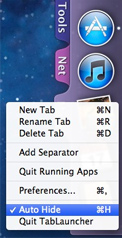
Why is the Auto Hide option not working?
The Auto Hide option in the menu bar hides all tabs on all screens, but only for a while. To make a tab hide for good, use the Auto Hide option in the tab’s own menu instead.
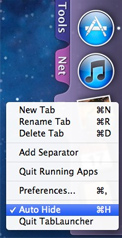
Will the tabs hide when I’m watching a movie?
Yes. They hide whenever an app is in full screen, just like the Dock.
Why can’t I drag apps from my Dock to TabLauncher?
Because the Dock doesn’t allow it: dragging something out of the Dock only removes it. To bring all the apps from your Dock into a new tab, go to the General section of the Preferences and click Import from Dock.
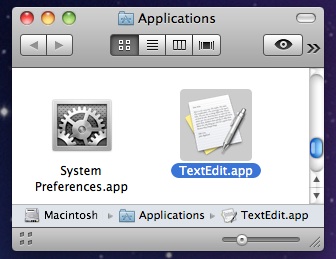
If you only want a few apps, show the app in the Finder:
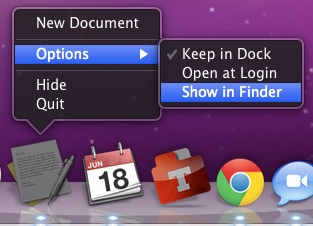
Then drag it from there onto TabLauncher. And while you’re in the Applications folder, you might find more apps worth adding to your tabs.
How do I quit TabLauncher?
Right-click any tab and choose Quit, or use TabLauncher’s icon in the menu bar.
How do I change the color of the tabs?
Open the Preferences, choose Tabs and select the tab. On the Shape pane, click Edit Gradients… to open the Gradient Studio. Drag the markers to move colors, and double-click the color ramp to add one. Automatic Colors makes a gradient from the tab’s color for you.
Can I give all tabs the same look?
For the shape, yes: set up one tab, click Edit Appearance… on its Shape pane, then Copy to All Tabs in the Appearance Studio.
Why doesn’t it open sometimes?
Check how TabLauncher is set to open. You can choose to rest or touch the pointer at the edge, hover a tab, click, or keep it always open. Resting the pointer at the edge waits until the pointer stops moving, so the tabs don’t open by mistake. Pick another option if you want them to open faster.
How do I add the Trash?
Right-click a tab and choose Add Custom → Trash → Trash. Clicking it shows the Trash in the Finder. See the tip.
Which versions of macOS are supported?
TabLauncher and TabLauncher Lite need macOS 12 or later. For very old Macs there is a Snow Leopard edition.
How do I update TabLauncher Pro?
Right-click a tab and choose Check for Updates… The App Store versions update through the App Store.
No question matches that. Try other words, or write to us.